-->

Wednesday, 8 October 2014

Application Implementation Methodology- (A.I.M.)

Application Implementation Methodology- (A.I.M.)

Application Implementation Method is a proven approach for all the activities required to implement oracle applications.  The scope of AIM is focused upon an enterprise as a whole.
AIM defines an organization’s business needs at the beginning of the project and maintains their visibility through out the implementation

There are eleven processes of implementation.

1. Business Process Architecture [BP]
Business process architecture addresses the organization’s business processes and aligns them with the business requirement and applications to be implemented.
High level process designs (BP0.070) and Future Process Model (BP0.080) are a part of this.
This phase outlines:
  • Existing business practices
  • Catalog change practices
  • Leading practices
  • Future practices
BP.010 Define Business and Process Strategy
BP.020 Catalog and Analyze Potential Changes
BP.030 Determine Data Gathering Requirements
BP.040 Develop Current Process Model
BP.050 Review Leading Practices
BP.060 Develop High-Level Process Vision
BP.070 Develop High-Level Process Design
BP.080 Develop Future Process Model
BP.090 Document Business Procedure

2. Business Requirement Definition[RD]
This phase explains about the initial baseline questionnaire and gathering of requirements.
Business Requirements Definition defines the business needs that must be met by the implementation project . This is RD 0.020 which is the current business needs.


RD.010 Identify Current Financial and Operating Structure
RD.020 Conduct Current Business Baseline
RD.030 Establish Process and Mapping Summary
RD.040 Gather Business Volumes and Metrics
RD.050 Gather Business Requirements
RD.060 Determine Audit and Control Requirements
RD.070 Identify Business Availability Requirements
RD.080 Identify Reporting and Information Access Requirements

3. Business Requirement Mapping[BR]
In this phase the requirements of business are matched/compared with the standard functionality of the oracle applications. Business requirements scenarios (RD0.050) are then mapped to oracle functionality.


BR.010 Analyze High-Level Gaps
BR.020 Prepare mapping environment
BR.030 Map Business requirements
BR.040 Map Business Data
BR.050 Conduct Integration Fit Analysis
BR.060 Create Information Model
BR.070 Create Reporting Fit Analysis
BR.080 Test Business Solutions
BR.090 Confirm Integrated Business Solutions
BR.100 Define Applications Setup

BR.110 Define security Profiles

4. Application and Technical Architecture [TA]
During Application and Technical Architecture, the information systems are designed to reflect the business vision. This outlines the infrastructure requirements to implement oracle applications.


TA.010 Define Architecture Requirements and Strategy
TA.020 Identify Current Technical Architecture
TA.030 Develop Preliminary Conceptual Architecture
TA.040 Define Application Architecture
TA.050 Define System Availability Strategy
TA.060 Define Reporting and Information Access Strategy
TA.070 Revise Conceptual Architecture
TA.080 Define Application Security Architecture
TA.090 Define Application and Database Server Architecture
TA.100 Define and Propose Architecture Subsystems
TA.110 Define System Capacity Plan
TA.120 Define Platform and Network Architecture
TA.130 Define Application Deployment Plan
TA.140 Assess Performance Risks

TA.150 Define System Management Procedures

5. Build and Module Design [MD]
Module design and build produces custom application extensions for gaps in functionality identified during BR. Custom application extensions include program modules( forms, reports, alerts and database triggers) that must be designed, built and tested before being transitioned in the new system.
This phase emphasizes the development of new functionality (customization) required by the client. It mainly details how to design the required forms, database and reports.


MD.010 Define Application Extension Strategy
MD.020 Define and estimate application extensions
MD.030 Define design standards
MD.040 Define Build Standards
MD.050 Create Application extensions functional design
MD.060 Design Database extensions
MD.070 Create Application extensions technical design
MD.080 Review functional and Technical designs
MD.090 Prepare Development environment
MD.100 Create Database extensions
MD.110 Create Application extension modules

MD.120 Create Installation routines

6. Data Conversion [CV]
Data Conversion is the process of converting or transferring the data from legacy system to oracle applications.
Ex. Transferring customer records from the legacy to the Customer Master.


CV.010 Define data conversion requirements and strategy
CV.020 Define Conversion standards
CV.030 Prepare conversion environment
CV.040 Perform conversion data mapping
CV.050 Define manual conversion procedures
CV.060 Design conversion programs
CV.070 Prepare conversion test plans
CV.080 Develop conversion programs
CV.090 Perform conversion unit tests
CV.100 Perform conversion business objects
CV.110 Perform conversion validation tests
CV.120 Install conversion programs

CV.130 Convert and verify data

7. Documentation [DO]
It defines the documentation requirements for the project and establishes which of the documentation tasks are required. Documentation prepared per module that includes user guides and implementation manuals.

DO.010 Define documentation requirements and strategy
DO.020 Define Documentation standards and procedures
DO.030 Prepare glossary
DO.040 Prepare documentation environment
DO.050 Produce documentation prototypes and templates
DO.060 Publish user reference manual
DO.070 Publish user guide
DO.080 Publish technical reference manual
DO.090 Publish system management guide

8. Business System Testing [TE]
Early in the project life-cycle, Business System Testing focuses on linking test requirements back to business requirements and securing project resources needed for testing. Business System Testing provides a formal integrated approach to Testing.
A process of validating the setup’s and functionality by QA(functional consultant) to certify status.
TE.010 Define testing requirements and strategy
TE.020 Develop unit test script
TE.030 Develop link test script
TE.040 Develop system test script
TE.050 Develop systems integration test script
TE.060 Prepare testing environments
TE.070 Perform unit test
TE.080 Perform link test
TE.090 perform installation test
TE.100 Prepare key users for testing
TE.110 Perform system test
TE.120 Perform systems integration test
TE.130 Perform Acceptance test

9. Performance Testing [PT]
Performance Testing enables you to define, build, and execute a performance test. The Performance Testing team defines the scope of testing and relates it to point-in-time snapshots of the transactions expected in the real production system.
Performance testing is the evaluation of transactions saving time, transaction retrieval times, workflow background process, database performance, etc…

PT.010 – Define Performance Testing Strategy
PT.020 – Identify Performance Test Scenarios
PT.030 – Identify Performance Test Transaction
PT.040 – Create Performance Test Scripts
PT.050 – Design Performance Test Transaction Programs
PT.060 – Design Performance Test Data
PT.070 – Design Test Database Load Programs
PT.080 – Create Performance Test Transaction Programs
PT.090 – Create Test Database Load Programs
PT.100 – Construct Performance Test Database
PT.110 – Prepare Performance Test Environment
PT.120 – Execute Performance Test

10; Adoption and Learning [AP]
Adoption and Learning establishes a measurement system that provides an evaluation of organizational performance to help make sure that expectations are met during implementation and after production cut-over.
This phase explains the removal of the legacy system and oracle application roll out enterprise wide.
AP.010 – Define Executive Project Strategy
AP.020 – Conduct Initial Project Team Orientation
AP.030 – Develop Project Team Learning Plan
AP.040 – Prepare Project Team Learning Environment
AP.050 – Conduct Project Team Learning Events
AP.060 – Develop Business Unit Managers’ Readiness Plan
AP.070 – Develop Project Readiness Roadmap
AP.080 – Develop and Execute Communication Campaign
AP.090 – Develop Managers’ Readiness Plan
AP.100 – Identify Business Process Impact on Organization
AP.110 – Align Human Performance Support Systems
AP.120 – Align Information Technology Groups
AP.130 – Conduct User Learning Needs Analysis
AP.140 – Develop User Learning Plan
AP.150 – Develop User Learning ware
AP.160 – Prepare User Learning Environment
AP.170 – Conduct User Learning Events
AP.180 – Conduct Effectiveness Assessment

11. Production Migration [PM]
Production Migration moves the company, system, and people to the new enterprise system.
The process of “decommissioning” of legacy system and the usage(adoption) of oracle application system.


PM.010 – Define Transition Strategy
PM.020 – Design Production Support Infrastructure
PM.030 – Develop Transition and Contingency Plan
PM.040 – Prepare Production Environment
PM.050 – Set Up Applications
PM.060 – Implement Production Support Infrastructure
PM.070 – Verify Production Readiness
PM.080 – Begin Production
PM.090 – Measure System Performance
PM.100 – Maintain System
PM.110 – Refine Production System
PM.120 – Decommission Former Systems
PM.130 – Propose Future Business Direction

PM.140 – Propose Future Technical Direction

Tuesday, 9 September 2014

HOW TO DELETE A CONCURRENT PROGRAM AND CONCURRENT EXECUTABLE


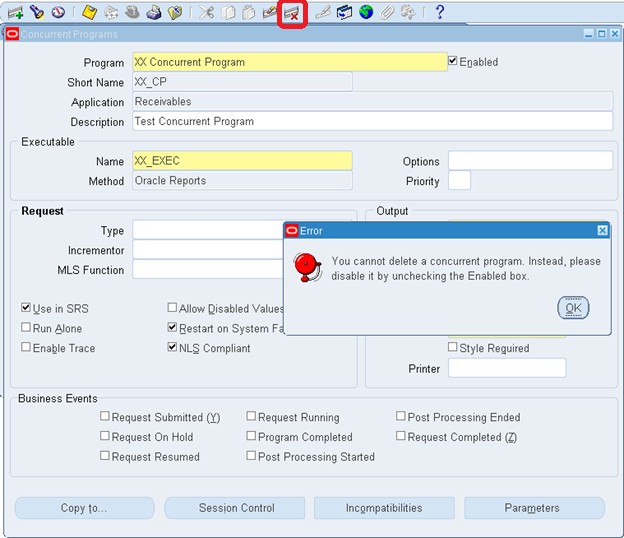
Concurrent program cannot be deleted from Oracle Applications front-end, it can only be disabled.
Try to delete a concurrent program from Oracle Applications front-end:-


Execute the following database script using fnd_program.delete_program to delete Concurrent program programmatically:-

BEGIN
FND_PROGRAM.DELETE_PROGRAM
(
PROGRAM_SHORT_NAME => 'XX_CP', -- CONC. EXECUTABLE SHORT NAME
APPLICATION => 'AR' -- PROGRAM APPLICATION SHORT NAME
);
COMMIT;
END;


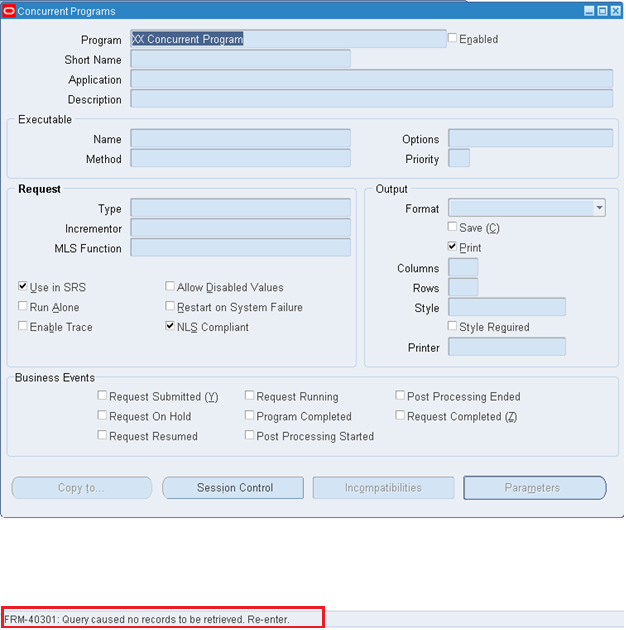
After the program deletion script is executed, try to query the Concurrent Program from Oracle Applications front-end:-
Steps:- F11, Enter Program: XX Concurrent Program, Ctrl + F11


Note: - The concurrent program is deleted


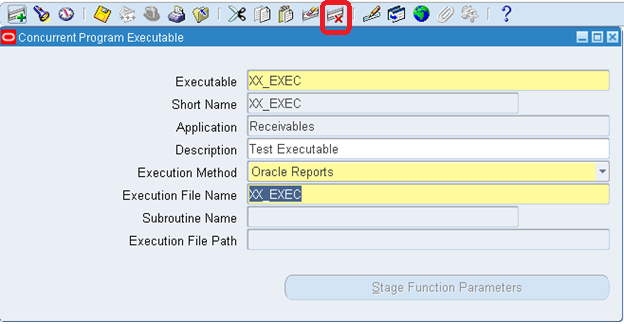
The Concurrent executable can be deleted from the Oracle Applications front-end after the associated Concurrent Program is deleted or it can be deleted by using a database script:-
Press on “Delete” icon and save to delete Concurrent executable:-


Following database script using fnd_program.delete_executable can be used to delete Concurrent executable programmatically:-
BEGIN
FND_PROGRAM.DELETE_EXECUTABLE
(
EXECUTABLE_SHORT_NAME => 'XX_EXEC', -- CONC. EXECUTABLE SHORT NAME
APPLICATION => 'AR' -- PROGRAM APPLICATION SHORT NAME
);
COMMIT;
END;


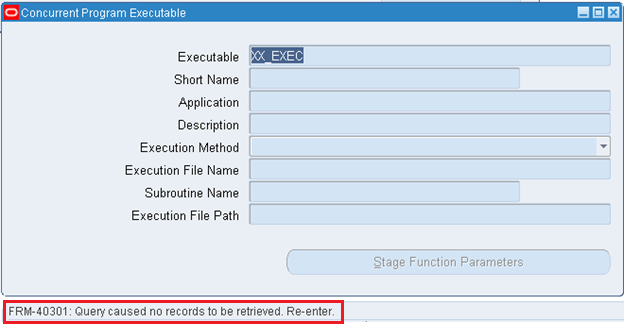
After the executable deletion script is executed in the database, try to query the Concurrent Program from Oracle Applications front-end:-


Steps:- F11, Enter Executable: XX_EXEC, Ctrl + F11


Note: - The concurrent executable is deleted


Monday, 25 August 2014

PO Match Settings in Oracle Purchase Orders

PO Match Settings in Oracle Purchase Orders
Invoice matching can be set in five different areas of Oracle Purchasing:
In the list below, a setting at any level will override the settings above it.
1.   Oracle Purchasing Options
a. Navigate to: Setup > Organizations > Purchasing Options
b. Select Default Alternative Region
2.   Supplier Information
a. Navigate to: Supply Base > Suppliers
b. Query on specific supplier
c. Click on Open
d. Select Receiving Alternative Region
3.   Line Types
a. Navigate to: Setup > Purchasing > Line Types
b. In the Receipt Required field: Yes = 3-way, No = 2-way
4.   Items
a. Navigate to: Items > Master Items
b. Query on specific item
c. Select Purchasing Alternative Region
d. In the Invoice Matching section: Yes = 3-way, No = 2-way
5.   Purchase Order Shipments
a. Navigate to: Purchase Orders > Purchase Orders
b. Enter (header and) line information
c. Click on Shipments button
d. Select More Alternative Region

Ramification of Invoice Match to PO and Invoice Match to Receipt
Oracle Payables shares purchase order information from your purchasing system to enable online matching with invoices. Invoiced or billed items are matched to the original purchase orders to ensure that you pay only for the goods or services you ordered and/or received. If you are billed for an item over the amount and quantity tolerances you define in the Invoice Tolerance window, during Approval, Oracle Payables applies a hold to the invoice, which prevents payment.
Oracle Payables supports three levels of matching which verify that purchase order and
invoice information match within defined tolerances.
Match Approval Level: 2-Way , 3-Way, 4-Way.
In 2-way: what ever you have ordered for the PO you will make the payment for the suppliers in 2- way i.e we will compare two documents PO and Invoice.
2-way matching verifies that Purchase order and invoice information match within your tolerances:
Quantity billed <= Quantity Ordered
Invoice price <= Purchase order price
Eg:Suppose we Had given PO for 100 items ,for that we will receive invoice for 100 items. so that we will make payment for that 100 items.

In 3-Way you will compare 3 documents i.e PO+reciept+Invoice.
3-way matching verifies that the receipt and invoice information match with the quantity tolerances defined:
Quantity billed <= Quantity received.
Eg:Suppose we have ordered 100 items in PO. But we had received only 75 items ,But we had received invoice for 100 items. so, we will make payment for only 75 items.
In 4-Way you will compare 4 documents i.e PO+Receipt+Invoice+Inspection.
4-way matching verifies that acceptance documents and invoice information match within the quantity tolerances defined:
Quantity billed <= Quantity accepted.
Eg:Suppose we have 100 items in PO. Suppers send us 75 items We will do inspection on those items what ever we have received, If 15items got damaged. finally, we are going to make payment to the 60 items only.
When you match to a purchase order, Payables automatically checks that the total of PO_DISTRIBUTIONS.QUANTITY_ORDERED = AP_INVOICE_DISTRIBUTIONS.QUANTITY_INVOICED (2-way matching). Payables only checks QUANTITY_RECEIVED (3-way matching) if the RECEIPT_REQUIRED_FLAG is set to Y and only checks QUANTITY_ACCEPTED (4-way matching) if the INSPECTION_REQUIRED_FLAG is set to Y.
Invoice Match Option:
The Invoice Match Option determines whether or not you intend to match invoices for this supplier against purchase orders or receipts.
Invoice Match option to PO Match:
•Payables must match the invoice to the purchase order.
•If the Invoice is matched to a PO rather than to the Receipt when the AP team do a match they have the full PO available to match rather than just the specific lines on the PO that were received.
•There is a possibility someone in payables matching to the wrong distribution if they use Match to PO.
•The accrual is valued at the PO exchange rate date.
Invoice Match option to PO Match:
•Payables must match the invoice to the receipt.
•Receipt Match Option is recommended if you want accounting to use exchange rate information based on the receipt date or if you want to update exchange rate information on the receipt.
•If you use the match to receipt option AP team can’t match until the goods are received. If the receiving doesn’t happen there is no way to associate the invoice with the PO.
•Invoice processing will be on hold till a receipt is entered into the system.
•Receipt Match option determines the cost with more accuracy i.e. Match to Material item receipt and link other invoice charges to receipt and You can now also associate freight, tax, and miscellaneous charges from invoices to the related receipt.
•Run the Matching Detail Report from Other -> Request -> Run. This report will show you detail of how an invoice, purchase order, or receipt was matched. This report is especially helpful when an invoice is on hold and you are trying determine why the hold was placed.
The Invoice Match Option defaults from the Supplier Sites window. You can change the Invoice Match Option on the shipment until you receive against the shipment.
Financial Options – Invoice Match Option:
For purchase order shipments, indicate whether you want to match invoices to purchase orders or to purchase order receipts. If the supplier was created automatically during Expense Report Import, the default value is Purchase Order, and you can change it to Receipts as appropriate.
The decision to set the Invoice match option to Receipt or Purchase Order depends on Business Needs.
•If you are using Multi Currency Functionality for Purchase Order and if like to have the rate based on Receipt date you need to go with Receipt Match at the invoice match option.
•The main advantage is the Exchange Rate factor i.e. Receipt/Current Date instead of Purchaser Order date.
•Receipt Match gives much closer control of the matching process,Particularly where you have multiple receipts of large purchase order.

If a Business is using Invoice Match option Purhcase Order and like to change from Purchase Order to Receipt Match, then what would be the impact?
•All Supplier sites need to be updated with Invoice Match option to Receipt.
•Purchase orders which are already approved with Invoice Match Option of Purchase order should continue with the same existing process.
•All existing Open PO, which need a change from Purchase Order to Receipt, should be corrected by changing the invoice match option in the purchase order shipment to Receipt. Payables team should match invoices to Receipt for all Purchase Orders created after the cut-off date.
•Training to AP/PO users.
In order for the receipt to use the current exchange rate and not the PO exchange rate, the Invoice Match Option at the system level and on the suppliers should be Receipt, not Purchase Order.

Invoice matching can be set in five different areas of Oracle Purchasing

Invoice matching can be set in five different areas of Oracle Purchasing:

1. Oracle Purchasing Options
  • a.Setup > Organizations > Purchasing Options 
  • b. Select Default Alternative Region 

2. Supplier Information
  • a.Supply Base > Suppliers 
  • b. Query on specific supplier 
  • c. Select Receiving Alternative Region 

3. Line Types
  • a.Setup > Purchasing > Line Types 
  • b. In the Receipt Required field: Yes = 3-way, No = 2-way 

4. Items
  • a. Navigate to: Items > Master Items 
  • b. Query on specific item 
  • c. Select Purchasing Alternative Region 
  • d. In the Invoice Matching section: Yes = 3-way, No = 2-way 

5. Purchase Order Shipments
  • a. Navigate to: Purchase Orders > Purchase Orders 
  • b. Enter (header and) line information 
  • c. Click on Shipments button 
  • d. Select More Alternative Region 

So if we do not want to change this at the PO level, we need to set this option at the Item level.

Thursday, 31 July 2014

STEP-BY-STEP GUIDE TO FILE YOUR INCOME TAX RETURN ONLINE


Step-by-step guide to file your income tax return online


     July 31, the last day to file income tax returns, is almost here. Sure, you can file returns even after that, but it comes with complications. So, don't count on it.

If you earn above Rs 5 lakh, you have to file returns electronically this year. That means you can file your returns even in the last two days from your home computer. You can seek the help of a professional or do it yourself by using the official website of the Income-Tax department or a host of private websites.

Before we proceed to how to use these portals effectively , let us address a major source of ambiguity this year regarding the applicability of forms ITR-1 and ITR-2 to salaried individuals or pensioners with one house property and interest income. Tax consultants are divided on the interpretation of new provision on exempt income , introduced this year.

According to this provision, those with exempt income exceeding Rs 5,000 cannot file their return using ITR-1 (Sahaj). While some feel that all salaried individuals who have tax-exempt income like House Rent Allowance (HRA), Leave Travel Allowance (LTA) and transport allowance have to use ITR-2 this year, others argue that they can continue to use the much simpler ITR-1 (Sahaj).

"My view is that the exempt income here refers to sources like dividends and not tax-free salary components like HRA and conveyance allowance," explains Divya Baweja, senior director at Deloitte in India. The Income-Tax department is yet to issue a clarification on the matter.

Using the official website

Before you start the process, keep your bank statements, Form 16 issued by your employer and a copy of last year's return at hand. Next, log on to www.incometaxindiaefiling .gov.in. Follow these steps:

Step1: Register yourself on the website. Your Permanent Account Number (PAN) will be your user ID.

Step2: View your tax credit statement — Form 26AS — for the financial year 2012-13 . The statement will reflect the taxes deducted by your employer actually deposited with the I-T department. The TDS as per your Form 16 must tally with the figures in Form 26AS. If you file the return despite discrepancies, if any, you could get a notice from the I-T department later.

Step 3: Under the 'Download' menu, click on Income Tax Return Forms and choose AY 2013-14 (for financial year 2012-13 ). Download the Income Tax Return (ITR) form applicable to you. If your exempt income exceeds Rs 5,000, the appropriate form will be ITR-2 . If the applicable form is ITR-1 or ITR 4S, you can complete the process on the portal itself, by using the 'Quick e-file ITR' link.

Step 4: Open the downloaded Return Preparation Software (excel utility) and complete the form by entering all the details , using your Form 16.

Step 5: Ascertain the tax payable by clicking the 'Calculate Tax' tab. Pay tax (if applicable) and enter the challan details in the tax return.

Step 6: Confirm all the information in the worksheet by clicking the 'Validate' tab.

Step 7: Proceed to generate an XML file and save it on your computer.

Step 8: Go to 'Upload Return' on the portal's left panel and upload the saved XML file after selecting 'AY 2013-2014 ' and the relevant form. You will be asked whether you wish to digitally sign the file. If you have obtained a DS (digital signature), select Yes. Or, choose 'No'.

Step 9: Once the website flashes the message about successful e-filing on your screen, you can consider the process to be complete. The acknowledgment form — ITR—Verification (ITR-V ) will be generated and you can download it.

Step 10: Take a printout of the form ITR-V , sign it preferably in blue ink, and send it only by ordinary or Speed post to the Income-Tax Department-CPC , Post Bag No-1 , Electronic City Post Office, Bangalore - 560 100, Karnataka, within 120 days of filing your return online.

Through private portals:
As mentioned earlier, you can use the services of several websites to file their returns online. Typically, these portals charge a fee depending on the service level on offer. The basic variant typically costs around Rs 250-300.

https://incometaxindiaefiling.gov.in/

Courtesy: http://articles.economictimes.indiatimes.com/2013-07-30/news/40895318_1_tax-credit-statement-form-26as-itr-1