-->

Wednesday, 11 June 2014

Important FND Tables in EBS

FND stands for foundation tables which is combination of AOL, SYSTEM, ADMINISTRATOR, MODULES tables and is placed under FND_TOP. Below i have listed few key FND tables that along with the little description of what is it used for :
FND_APP_SERVERS : This table will track the servers used by the E-Business Suite system.
FND_DATABASES : It tracks the databases employed by the eBusiness suite. This table stores information about the database that is not instance specific.
FND_DATABASE_INSTANCES : Stores instance specific information. Every database has one or more instance.
FND_ATTACHED_DOCUMENTS : Stores information relating a document to an application entity.
FND_DOCUMENTS : Stores language-independent information about a document.
FND_CURRENCIES : Stores information about currencies.
FND_LANGUAGES : Stores information regarding languages and dialects.
FND_TERRITORIES : Stores information for countries, alternatively known as territories.
FND_CONCURRENT_PROCESSES : Stores information about concurrent managers.
FND_CONCURRENT_PROCESSORS : Stores information about immediate (subroutine) concurrent program libraries.
FND_CONCURRENT_PROGRAMS(_TL) : Stores information about concurrent programs. Each row includes a name and description of the concurrent program.
FND_CONCURRENT_QUEUES : Stores information about concurrent managers.
FND_CONCURRENT_QUEUE_SIZE : Stores information about the number of requests a concurrent manager can process at once, according to its work shift.
FND_CONCURRENT_REQUESTS : Stores information about individual concurrent requests.
FND_CONCURRENT_REQUEST_CLASS : Stores information about concurrent request types.
FND_CONC_REQ_OUTPUTS : This table stores output files created by Concurrent Request.
FND_EXECUTABLES : Stores information about concurrent program executables.
FND_DESCRIPTIVE_FLEXS(_TL) : Stores setup information about descriptive flexfields.
FND_FLEX_VALUES : Stores valid values for key and descriptive flexfield segments.
FND_FLEX_VALUE_SETS : Stores information about the value sets used by both key and descriptive flexfields.
FND_LOOKUPS : Stores information about lookup types.
FND_LOOKUP_VALUES : Stores meaning values and codes for lookup types.
FND_MENUS(_TL) : It lists the menus that appear in the Navigate Window, as determined by the System Administrator when defining responsibilities for function security.
FND_MENU_ENTRIES : Stores information about individual entries in the menus in FND_MENUS.
FND_REQUEST_GROUPS : Stores information about report security groups.
FND_REQUEST_SETS : Stores information about report sets.
FND_RESPONSIBILITY(_TL) : Stores information about responsibilities.
FND_RESP_FUNCTIONS : Stores security exclusion rules for function security menus. Security exclusion rules are lists of functions and menus inaccessible to a particular responsibility.
FND_PROFILE_OPTIONS : Stores information about profile options.
FND_SECURITY_GROUPS : Stores information about security groups used to partition data in a Service Bureau architecture.
FND_USER : Stores information about application users.
FND_APPLICATION(_TL) : Stores applications registered with Oracle Application Object Library.
FND_SEQUENCES : Stores information about the registered sequences in your applications.
FND_VIEWS : Stores information about the registered views in your applications.
FND_TABLES : Stores information about the registered tables in your applications.

Menu in Oracle Apps

Menu in Oracle Apps

Menu is nothing but a logical or hierarchical listing of functions (forms) so that the user can easily navigate through the forms once he is in a responsibility.
Every responsibility will be assigned only one main menu. Under that main menu, you can have either have other sub menus or functions.
Functions are nothing but the forms which ultimately the users would like to work on.
One menu can be assigned to multiple responsibilities
The below screenshot clearly identifies what Responsibility, Main Menu, Sub menu and Function are:
Oracle_Applications
Heirarchical representation of Menus:
Blank
If you log in to System Administrator responsibility, you will see a whole lot of menus. To get to Users form, you will have to traverse to Security > Users > Define. To get to the Responsibility form, you need to traverse to Security > Responsibility > Define. Say the user wants to create a new menu called erpSchools Access Menu that will only have Users and Responsibility form directly instead of traversing through multiple sub menus and functions.
Now let’s see the steps to build custom menu:
1. First identify the function name of Users Form.
Navigate to System Administrator > Security > Responsibility > Define
Query for “System Administrator”
Oracle_Applications
The value that you see in the Menu field is the Main Menu attached to this responsibility. Copy that.
Navigate to System Administrator > Application > Menu
Oracle_Applications
Query for User Menu Name as “Navigator Menu – System Administrator GUI” (the one copied from Menu field value in responsibility screen).
Oracle_Applications
We are looking for the exact Function name of Users form. If you remember, Users form is under Security sub menu. So now go to Security. If you observe Function field is empty instead you see a value under Sub Menu. This means Security is another sub menu and not a form/function by itself. Copy the Sub Menu value.
Oracle_Applications
In the same Menus form, now query for “Security Menu – System Administrator GUI” as User Menu Name. Since we know our Users forms is under Security > Users, look for User Sub menu and make a note of its Sub menu name (Users has another sub menu)
Oracle_Applications
In the same Menus form, now query for “User Menu – System Administrator GUI” as User Menu Name. You will see “Users” under Function field which means that node is the last one. There are no more sub menus. And that is the one we are interested in. Make a note of the function name – Users.
Oracle_Applications
2.Identify the function name for Responsibility form:
By following the same drill as above, we will know that function name for Responsibility form is Responsibilities.
3.Let’s create a new menu
Navigate to System Administrator > Application > Menu
Enter the below details:
Menu: ERPSCHOOLS_ACCESS_MENU (Short name for your menu for internal use)
User Menu Name: erpSchools Access Menu (Menu Name users see for this menu)
Menu Type: Enter Standard here
Possible Values for Menu type:
Standard – for menus that would be used in the Navigator form
Tab – for menus used in self service applications tabs
Security – for menus that are used to aggregate functions for data security or specific function security purposes, but would not be used in the Navigator form
Description: Meaningful description for this menu
Now enter the menu entries, here we want Users and Responsibilities functions under our menu.
Seq: 1 (the sequence in which you wish to see the menu entries)
Prompt: Users – Define (Users will see this name under the menu)
Function: Users (Function name which we have identifies in step 1)
Similarly make an entry for Responsibilities function
Seq: 2 (the sequence in which you wish to see the menu entries)
Prompt: Responsibilities – Define (Users will see this name under the menu)
Function: Responsibilities (Function name which we have identifies in step 2)
Save the work.
Oracle_Applications
With this we have created a new menu which will have Users and Responsibilities forms.
4. We have to assign this menu to some responsibility to be able to access this menu. We will cover that in the next article Responsibilities in Oracle Apps.

Tuesday, 3 June 2014

Requisition Cancellation


Requisition Cancellation


Requisition line can be cancelled by two methods:

ü  Cancel Requisition Line
ü  Finally Close

·         Cancel Requisition Line:
The line will be cancelled and the quantity will be available in Cancelled Quantity field only, the item will not reflect in Autocreate menu for the mentioned requisition.

·         Finally Close:
The line will be closed and the item will not reflect in Autocreate menu for the mentioned requisition.

Navigation:
Responsibility: India Local Purchasing > Oracle Purchasing > Requisitions > Requisition Summary > Lines > Tools > Control.


·         Cancel Requisition Line:

1.       Query Requisition from Requisition Summary 
        (Here ref – 196 queried which is in Incomplete status with multiple line items):


2.       Approved status of requisition in the summary


3.     Select the Line which is to be cancelled in the summary form. (S no – 5 selected here)


4.      Navigate to Tools > Control


5.      Selected the “Cancel Requisition Line”  and define with reason.


6.      Displays Warning Message “Once document is cancelled it cannot be undone”.


7.      Warning Message displays “Control action is completed successfully. Please re-query to see the changes”.


8.      Requery the summary – The line no : 5 show as cancelled with reason.


·         Finally Close:

1.      Select the Line which is to be Finally Close in the summary form. (S no – 4 selected here)


2.      Navigate to Tools > Control, Select Finally Closed and provide reason.


3.      Requery the summary – The line no : 4 show as Closed with reason.


·         Auto Create Process:

1.      Query the Requisition Number in the Auto Create Menu.


2.      Line nos - 1, 2 & 3 is available for conversion in Autocreate Menu.  


Enable Diagnostics in Oracle Apps

Enable Diagnostics in Oracle apps
How to enable Oracle apps Diagnostics-> Examine, for certain users?
Steps 1
Navigate to System Administrator responsibility> Profile> System>
  

Steps 2
Enter profile name: Utilities:Diagnostics
Enter Application User for whom you want to enable Diagnostics-> Examine

Steps 3
Give Yes at User level and Save the Changes
Note –
You can set Yes at Site level also if you want to enable this option for all Oracle application users

Steps 4
Again navigate to System Administrator responsibility> Profile> System>
Enter profile name: Hide Diagnostics menu entry
Enter Application User for whom you do not want to hide Diagnostics menu entry

Steps 5
Give No at User level and Save the Changes
Note –
You can set No at Site level also if you do not want to hide menu entry option for all Oracle application users

Steps 6
Congratulations you have successfully enabled Diagnostics-> Examine
Logout from Oracle Application and login again. Now can see Diagnostics-> Examine option


Summary:

Personalize self service definition = YES
FND: Personalisation region link enabled = YES
Disable self-service personnel = NO at site level
FND: Diagnostics = YES
Utilities:Diagnostics = YES
Hide Diagnostics menu entry  = NO

Wednesday, 30 April 2014

A Guide for Beginners to learn Structured Query Language (SQL)

Structured Query Language (SQL)

SQL is a standard language for accessing and manipulating databases.


What is SQL?

  • SQL stands for Structured Query Language
  • SQL lets you access and manipulate databases
  • SQL is an ANSI (American National Standards Institute) standard


What Can SQL do?

  • SQL can execute queries against a database
  • SQL can retrieve data from a database
  • SQL can insert records in a database
  • SQL can update records in a database
  • SQL can delete records from a database
  • SQL can create new databases
  • SQL can create new tables in a database
  • SQL can create stored procedures in a database
  • SQL can create views in a database
  • SQL can set permissions on tables, procedures, and views

SQL is a Standard - BUT.... Although SQL is an ANSI (American National Standards Institute) standard, there are different versions of the SQL language.

However, to be compliant with the ANSI standard, they all support at least the major commands (such as SELECT, UPDATE, DELETE, INSERT, WHERE) in a similar manner.


Using SQL in Your Web Site

To build a web site that shows data from a database, you will need:
  • An RDBMS database program (i.e. MS Access, SQL Server, MySQL)
  • To use a server-side scripting language, like PHP or ASP
  • To use SQL to get the data you want
  • To use HTML / CSS

RDBMS

RDBMS stands for Relational Database Management System.

  • RDBMS is the basis for SQL, and for all modern database systems such as MS SQL Server, IBM DB2, Oracle, MySQL, and Microsoft Access.
  • The data in RDBMS is stored in database objects called tables.

Database Tables

A database most often contains one or more tables. Each table is identified by a name (e.g. "Customers" or "Orders"). Tables contain records (rows) with data.

In this tutorial we will use the well-known Northwind sample database (included in MS Access and MS SQL Server).

Below is a selection from the "Customers" table:

CustomerIDCustomerNameContactNameAddressCityPostalCodeCountry
1Alfreds FutterkisteMaria AndersObere Str. 57Berlin12209Germany
2Ana Trujillo Emparedados y heladosAna TrujilloAvda. de la Constitución 2222México D.F.05021Mexico
3Antonio Moreno TaqueríaAntonio MorenoMataderos 2312México D.F.05023Mexico
4Around the HornThomas Hardy120 Hanover Sq.LondonWA1 1DPUK
5Berglunds snabbköpChristina BerglundBerguvsvägen 8LuleåS-958 22Sweden

The table above contains five records (one for each customer) and seven columns (CustomerID, CustomerName, ContactName, Address, City, PostalCode, and Country).

Ref: http://www.w3schools.com/sql/sql_syntax.asp

SQL Statements


Most of the actions you need to perform on a database are done with SQL statements.
The following SQL statement selects all the records in the "Customers" table:

SELECT * FROM Customers;
The above Query will list all the Rows & Columns in the Database Table.

Simulator: http://www.w3schools.com/sql/trysql.asp?filename=trysql_select_all


Keep in Mind That...

SQL is NOT case sensitive: select is the same as SELECT
In this tutorial we will write all SQL keywords in upper-case.

Semicolon after SQL Statements?

  • Some database systems require a semicolon at the end of each SQL statement.
  • Semicolon is the standard way to separate each SQL statement in database systems that allow more than one SQL statement to be executed in the same call to the server.
  • In this tutorial, we will use semicolon at the end of each SQL statement.

Some of The Most Important SQL Commands

  • SELECT - extracts data from a database
  • UPDATE - updates data in a database
  • DELETE - deletes data from a database
  • INSERT INTO - inserts new data into a database
  • CREATE DATABASE - creates a new database
  • ALTER DATABASE - modifies a database
  • CREATE TABLE - creates a new table
  • ALTER TABLE - modifies a table
  • DROP TABLE - deletes a table
  • CREATE INDEX - creates an index (search key)
  • DROP INDEX - deletes an index

SQL SELECT Statement

The SELECT statement is used to select data from a database.
The result is stored in a result table, called the result-set.

SQL SELECT Syntax

SELECT column_name,column_name FROM table_name;
&
SELECT * FROM table_name;

Tuesday, 22 April 2014

Basic Setups on Purchase & Order Management Module


Basic Setups on Purchase & Order Management Module

Purchase Module: 

1. Personnel

Define EmployeesDefine JobDefine PositionDefine Position HierarchyDefine Buyer


2. Approvals

Define Approval Assignments
Define Approval Group


3. Organization

Receiving Option
Financial Option
Purchasing Option

4. Create Document Types
5. Create Supplier

Order Management Module:

1. Define OM System parameters
2. Define System Options
3. Define Customer profile classes
4. Define Payment terms
5. Define Transaction Type:
Define line types
Define order types

6. Define Price list
7. Define Customer
8. Define Picking rule
9. Define Global Parameter
10. Define Document sequence
Assign the Documents

11. Define Release Sequence Rule
Picking
Setup

12. Define Release rule
13. Define Pick slip grouping rule
14. Define Grants and role definition

Courtesy : Mr. CS Boopathy

Tuesday, 15 April 2014

Different Receiving Options


Different Receiving Options


We can use different methods for receiving goods in our subinventories

1.) Allow Substitute Receipts: It is used in case our supplier sends us a substitute item. It means we have ordered for item A but we have received item B.

Define relationship between items. Navigate to Items > Item Relationships à Click on New & give details as shown below


It means that we can receive VS ASL Item1 instead of VS ASL Item 2

Now navigate to Setup > Organizations > Receiving Options & check the Allow Substitute Receipt checkbox  & save the record


This option can be over written at PO level

Next is to create a PO. While creating a PO, we can overwrite the ‘Allow Substitute Receipts’ option


Save & approve the PO


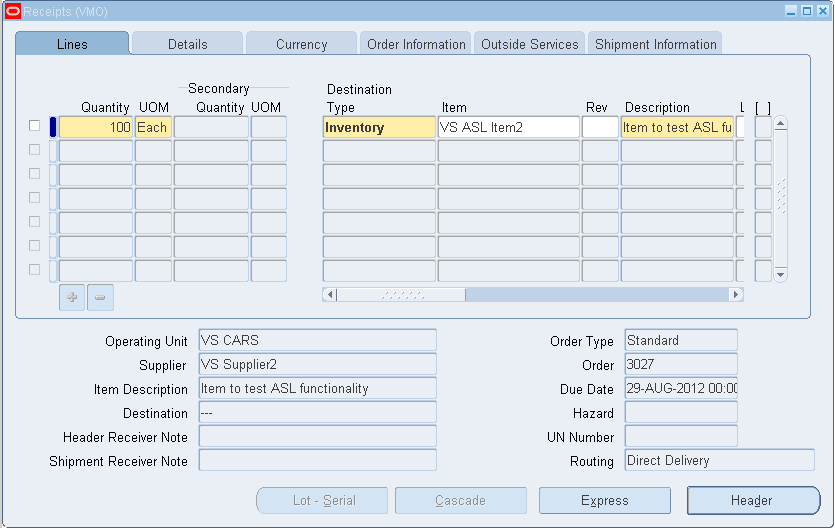
Now navigate to Receiving > Receipts


Here we can see that item field is enabled & if we wish, we can change the item details


Save the record.


2.) Allow Unordered Receipts: When we go for Allowed Unordered Receipts then goods will be sent to us without a PO. But these goods can only be sent till receiving. If we wish to transact these goods to sub inventory then a PO is required.

Navigate to Setup > Organizations > Receiving Options

Check the ‘Allow Unordered Receipts’ checkbox & save the record

Now navigate to Receiving > Receipts à Click on Unordered & give details as shown below (Here we need to give each & every detail manually)


A Receipt number will be generated at Header level.

Now check the Receiving Transaction Summary. Navigate to Receiving > Receiving Transaction Summary à Search by receipt number


Here Transaction Type is Unordered Receipt

Next step is to create a PO. The Receipt Routing for this PO can be either Standard or Inspection (Because a Direct PO will send the goods directly to sub inventories)


Save & approve the PO


Now Navigate to Receiving > Match Unordered Receipts & give details as shown below


Now again Navigate to Receiving Transaction Summary form


Here we can see that the receipts are matched with PO.

Till now goods are in Receiving area. We need to move these goods to Sub Inventory. Navigate to Receiving > Receiving Transactions

Give Sub Inventory details & save the record


Again Navigate to Receiving Transaction Summary form


We can see that the goods are now moved to subinventory

3.) Express Transaction: It is used when the receipt routing method is Inspection but due to some business requirement, we do not want our goods to be inspected. Means they should be directly sent to subinventories


Navigate to Setup > Organization > Receiving Options


Check the ‘Allow Express Transactions’ checkbox & save the record

Now create a PO with Receipt Routing as Inspection Required & give subinventory details in Distribution Tab


Save & Approve the PO


Now Navigate to Receiving > Receipts à Here we can see that Express option is enabled. If we make any changes in the receipt. This option will be disabled so without making any changes click on Express


& save the record


4.) Cascade Transactions: In such transactions the quantity which is not fulfilled in first shipment will be fulfilled in subsequent shipments.

Navigate to Setup > Organizations > Receiving Options à Check Allow Cascade Transaction Check Box


Next is to create a PO. Navigate to Purchase Orders > Purchase Orders & give details as shown below


Save & approve the PO


Navigate to Receiving > Receipts à Give PO & Line Number in search criteria


We can see that Cascade Tab is enabled. Click on Cascade & give details as shown below


Give sub inventory details & save the record. Requery & you can see the price has been adjusted


5.) Blind Receiving: This option is used when we want our receipts to show 0 quantity no matter whatever is the quantity mentioned in PO. The purpose behind it is to count the goods once they arrive in your inventory & enter the quantity manually

Create a PO


Check receipt for this PO


Right now we are able to see the quantity in receipts. Now navigate to Setup > Organizations > Receiving Options àCheck Allow Blind Receiving checkbox


Now again check the receipt


Now we can see that the quantity is 0. Quantities will be counted & then entered into the receipts